

A new Assistive Listening System (ALS)
The county has upgraded the Board of Supervisor's (BOS) chambers with a ListenWIFI system available for anyone attending BOS meetings in person.
Users can connect to the system from their own smartphones using the ListenWIFI app or with receivers provided by the county.
This page contains instructions on how to connect with the app and the receiver.
Connect with your own device
You can connect to the audio in the chambers using your own smartphone! Follow the instructions provided below to download the app and get connected.
1 - Download the app
The ListenWIFI app is available to download for free.
2 - Connect to the audio
- Connect to the Wi-Fi network: BOSChambersPublic
- Open the app.
- In the text box at the bottom of the screen enter the IP address: 10.101.52.10
- Wait for the app to connect to the room audio.
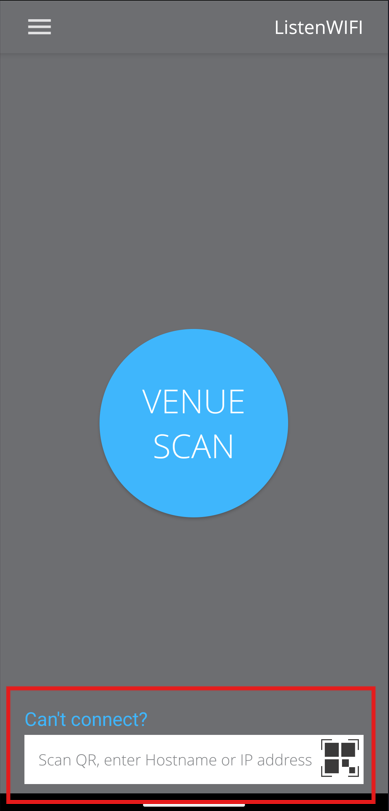
3 - Ensure your headset is connected to your phone
You control the volume of the audio using your smartphone.
Use one of the provided receivers
In addition to the app, the County has several ListenWIFI receivers available for you to use.
1 - Get a receiver from the clerk/operator desk
These are available at the clerk/operator desk, on the opposite side of the room from the main entrance.
2 - Turn on the receiver
Turn on the receiver by pressing and holding the power button for 1 second. The power button is located on the top of the receiver on the right-hand side.
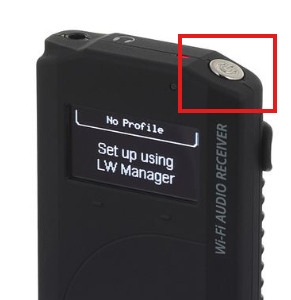
The receivers have already been configured to connect to the Wi-Fi network and will connect automatically. If the connection is not established, please return the receiver to the clerk's desk and they will provide you with another.
3 - Connect your headset
You can use the provided headset or connect to your T-Coil enabled hearing aid.
To use the headset, just plug the in the headset jack to the receiver. You can also use your own headset if it has a 3.5mm jack. Please note that the receivers do not support blue tooth headsets or earpieces.
To connect with your T coil:
- Activate the T coil in your hearing device (required).
- Connect the neck loop's 2 jacks into the receiver.
- Wear the loop around your neck.
4 - Adjust the volume
Adjust the volume using buttons on the side of the receiver.
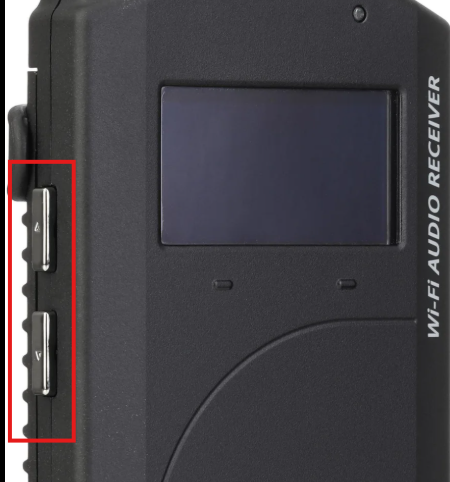
5 - Changing the language
Meetings are offered in both English and Spanish via an interpreter.
To hear Spanish in an in-person meeting, you can use the ALS receiver.
To change the channel between the English and Spanish streams use the "soft" buttons on the front of the receiver directly under the OLED screen. Pressing the left button will cycle between English and Spanish.
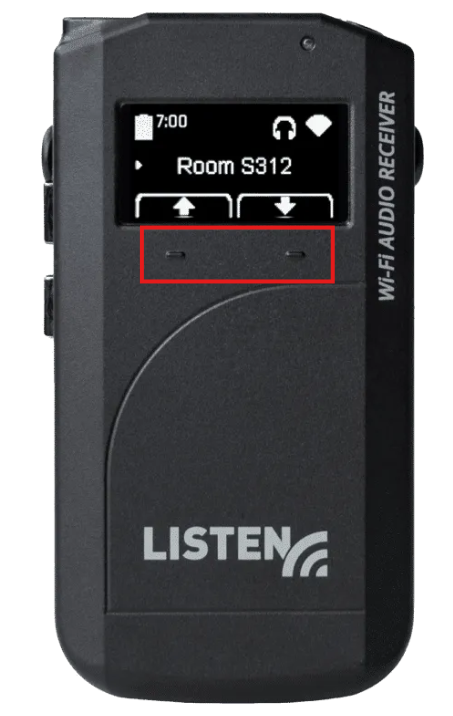
Note: after changing the channel it will take a second to hear the new audio.
Frequently Asked Questions
No! The receivers are free to use for everyone. Just go to the clerk's desk to get one and then return it when you are finished.
Yes, if you want to use your own smartphone. Download the free ListenWIFI app from the Apple App Store or Google Play Store before connecting to the meeting audio.
If you prefer, you can borrow a ListenWIFI receiver from the clerk's desk instead.
Yes. If you're using the ListenWIFI app, use headphones compatible with your smartphone. If you're using a county receiver, you can use the provided headset, your own wired headphones with a 3.5 mm jack, or a T-coil compatible hearing aid with the provided neck loop.
If you're using the ListenWIFI app on your smartphone, you can use any headphones or hearing devices that work with your phone, including Bluetooth devices.
If you're using a county receiver, Bluetooth headphones and earpieces are not supported. You can use the provided headset or your own wired headphones with a 3.5 mm jack or a T-coil compatible hearing aid with the provided neck loop.
If you're using the ListenWIFI app, make sure you've entered the correct IP address and followed the connection instructions.
If you're using a county receiver and it doesn't connect automatically, return it to the clerk's desk for assistance or a replacement receiver.
County staff at the clerk's desk are available to help you get connected before the meeting begins. If you're using a county receiver and experience any issues, they can also provide a replacement receiver if needed.